JUL
18
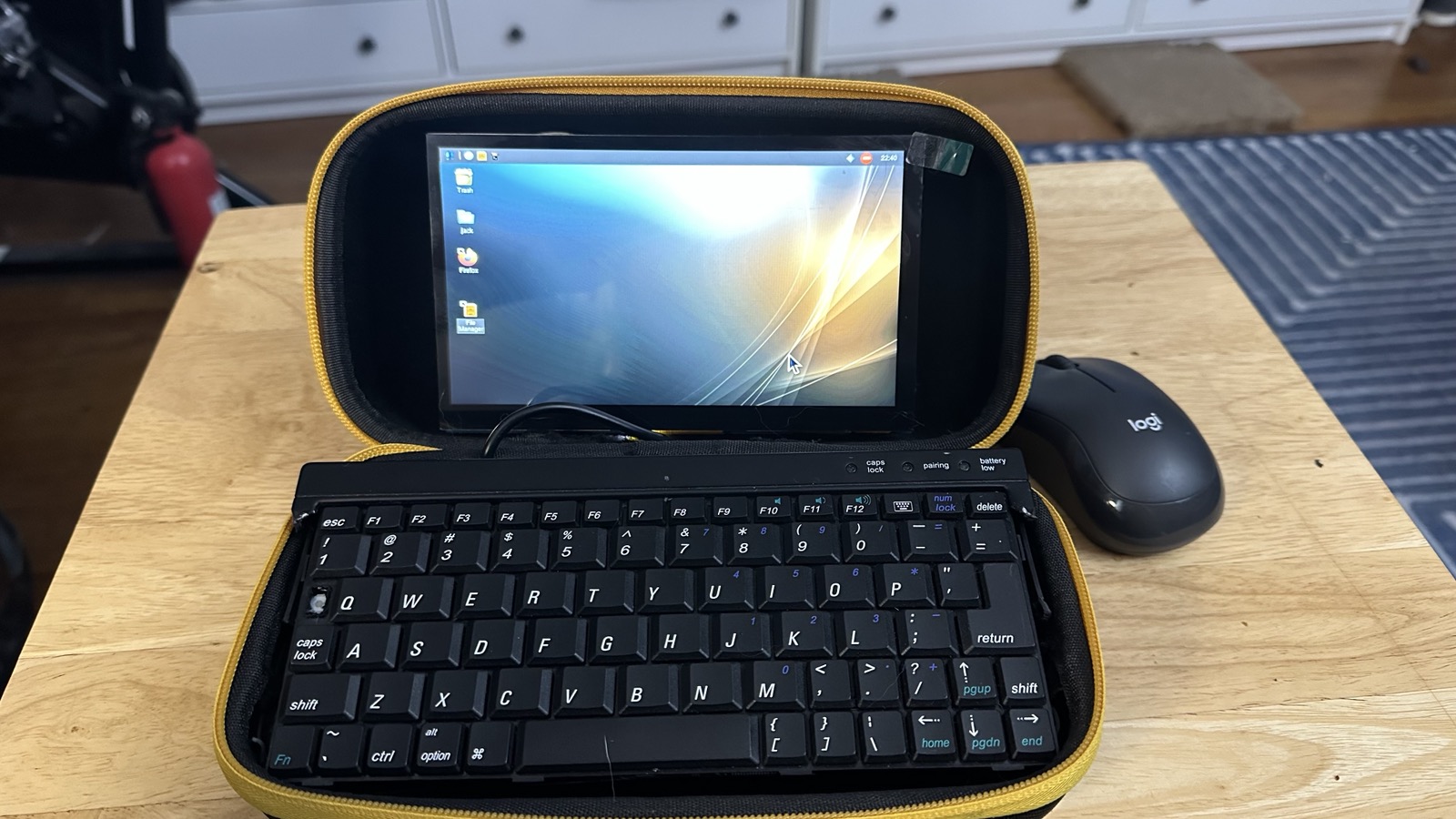
As a continued effort to put off writing my talk for the Hope conference.
I decided to build a cyberdeck, and I wanted to do it with things I had sitting around. Turns out I have a lot of junk sitting around.
Parts List:
- Raspberry pi5 w/ SD card
- Smallest bluetooth keyboard I could find in my junk pile
- Hosyond 7 Inch Touchscreen (the only part I didn't have)
- 5V/3A USB battery pack (like you would use to charge your phone)
- **Quality** USB to USB-C cable
- Old zippered case I had lying around
The first thing I needed to do was get the pi5 up and running. I used the raspberry pie imager with the SD card. I went with something basic and 64 bit, the latest version of the OS called “Trixie". This being proof of concept I wanted to go as vanilla as possible. The app also let me set SSID and preinstall SSH.
Booted the pie got the green light but no image. I hit my first snag. my micro HDMI adapter stopped working. Luckily I was able to SSH in and install VNC. There's a stock version of VNC but it involved creating an account on the cloud somewhere. no thanks. So I did it the hard way.
I SSH’s into the box ( if SSH isn't your thing you can mount the SD card on your desktop the configure.txt is visible) amd added `usb_max_current_enable=1` to `/boot/firmware/config.txt` so the Pi 5 stops capping USB current when it's running off a battery bank instead of the official 5A wall supply. Without it, the Pi detects the weaker supply and throttles peripheral current to be safe. With it set, the Pi draws what it needs off a solid 5V/3A bank, which for a headless deck with a DSI screen is plenty.
with VNC was up and running I was able to take a look at the desktop and tweak it to my likeing. I was running it completely on the USB battery and getting a low-voltage warning, I upgraded the quality of my USB-C cable and the
warnings went away.
The real trick was making it all fit into a portable self-contained case. This was the zippered case I had settled on. It was originally to hold a car battery pack. Sturdy. And spacious.

I decided to build a cyberdeck, and I wanted to do it with things I had sitting around. Turns out I have a lot of junk sitting around.
Parts List:
- Raspberry pi5 w/ SD card
- Smallest bluetooth keyboard I could find in my junk pile
- Hosyond 7 Inch Touchscreen (the only part I didn't have)
- 5V/3A USB battery pack (like you would use to charge your phone)
- **Quality** USB to USB-C cable
- Old zippered case I had lying around
The first thing I needed to do was get the pi5 up and running. I used the raspberry pie imager with the SD card. I went with something basic and 64 bit, the latest version of the OS called “Trixie". This being proof of concept I wanted to go as vanilla as possible. The app also let me set SSID and preinstall SSH.
Booted the pie got the green light but no image. I hit my first snag. my micro HDMI adapter stopped working. Luckily I was able to SSH in and install VNC. There's a stock version of VNC but it involved creating an account on the cloud somewhere. no thanks. So I did it the hard way.
I SSH’s into the box ( if SSH isn't your thing you can mount the SD card on your desktop the configure.txt is visible) amd added `usb_max_current_enable=1` to `/boot/firmware/config.txt` so the Pi 5 stops capping USB current when it's running off a battery bank instead of the official 5A wall supply. Without it, the Pi detects the weaker supply and throttles peripheral current to be safe. With it set, the Pi draws what it needs off a solid 5V/3A bank, which for a headless deck with a DSI screen is plenty.
with VNC was up and running I was able to take a look at the desktop and tweak it to my likeing. I was running it completely on the USB battery and getting a low-voltage warning, I upgraded the quality of my USB-C cable and the
warnings went away.
The real trick was making it all fit into a portable self-contained case. This was the zippered case I had settled on. It was originally to hold a car battery pack. Sturdy. And spacious.
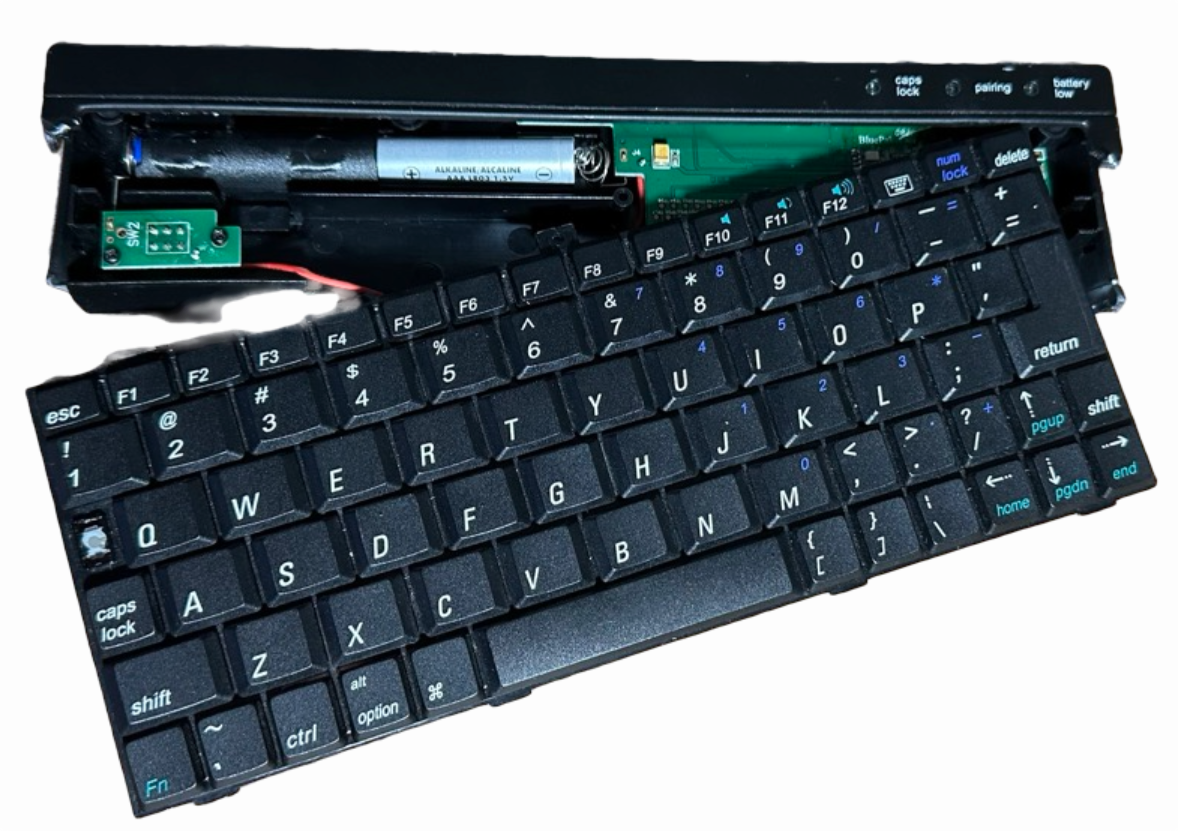
The keyboard itself didn't fit. Well, all of the things surrounding the keyboard and the unnecessary plastic didn't fit so I used a box cutter and some sharp pliers and cut it down to the necessary parts. It now fits. Using the piece of foam that came with the case I was also able to store the battery underneath. Not my first choice for a keyboard but you have to crawl before you can walk.
A note about heat. If you're going to do something like this I highly recommend investing in a fan. One for the pi five will run you between 10 and $20.
Cyber deck all closed up